
How To Add Images In Chat
In the instant chat you can add images in the chat by pasting the full url to the externally hosted image.
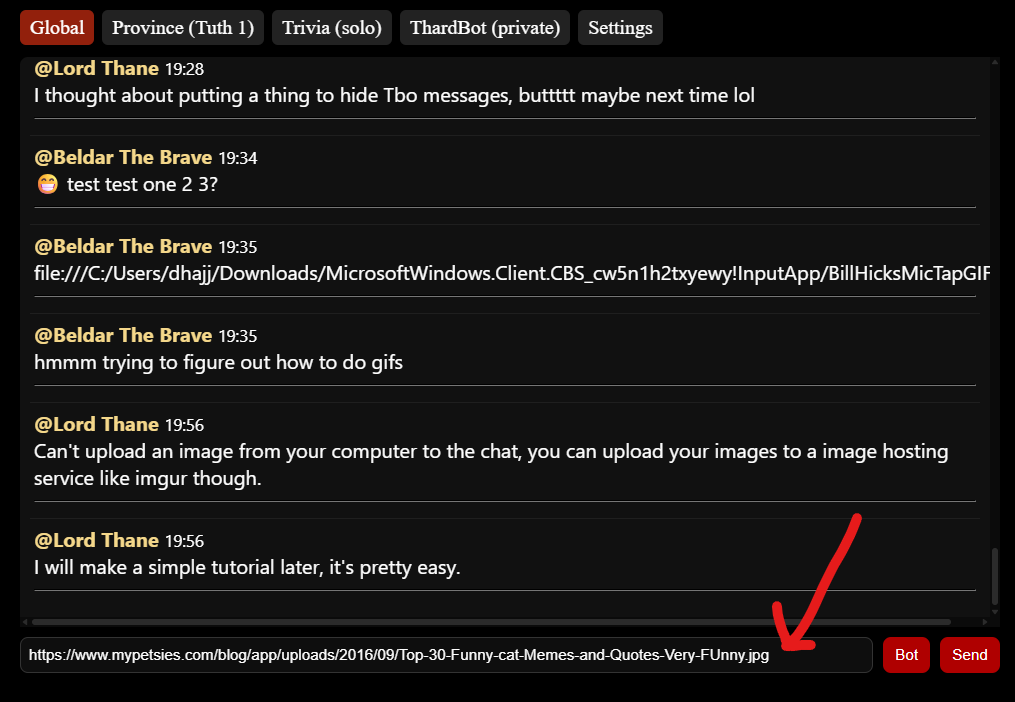
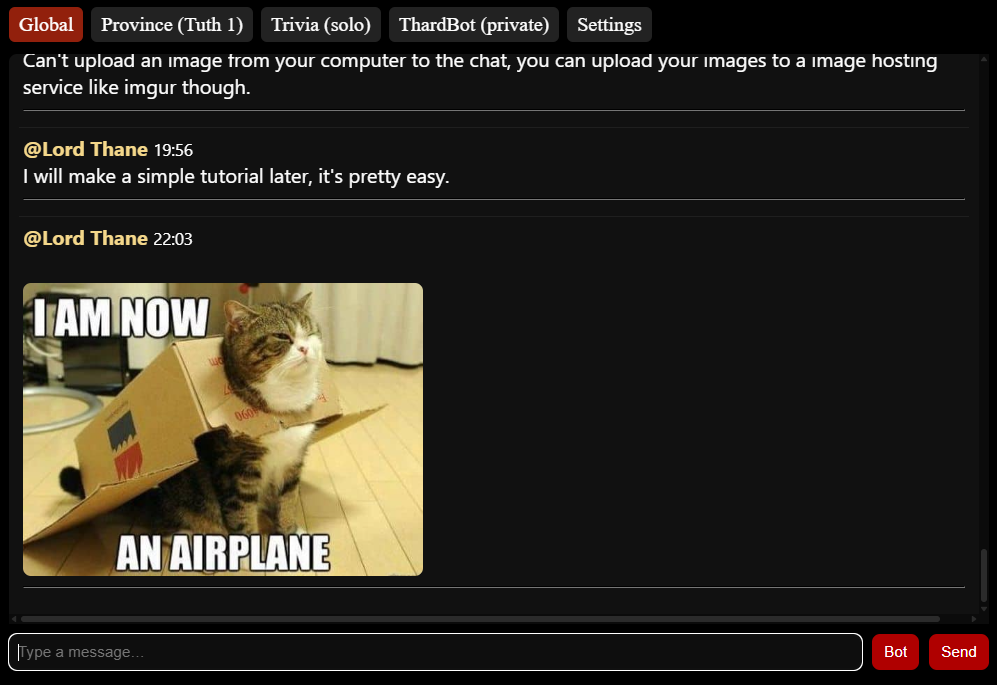
Now hit SEND and the image will render in the chat:
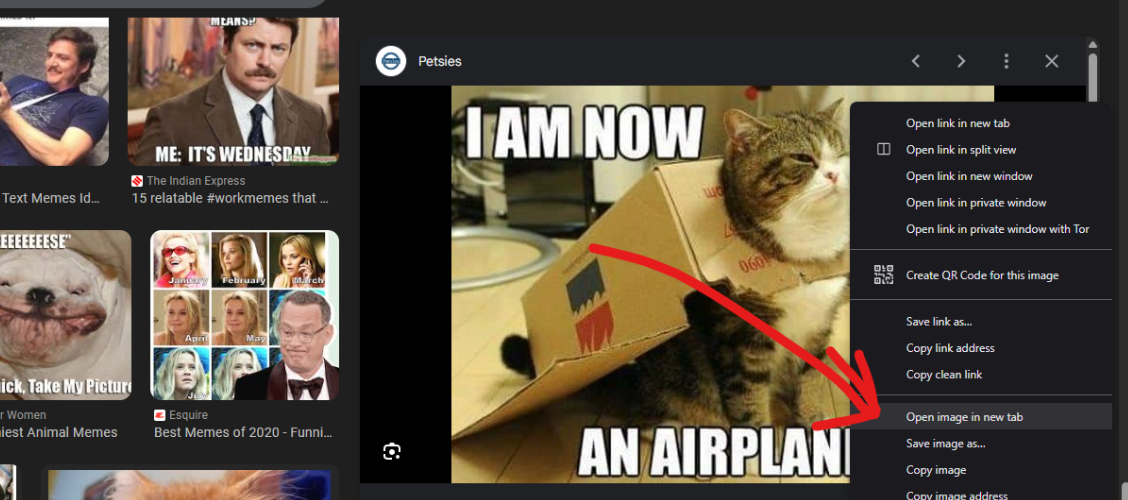
You can find the full url to an image anywhere on the internet usually by right-clicking (or long press on mobile) an image and selecting “open image in new tab”:
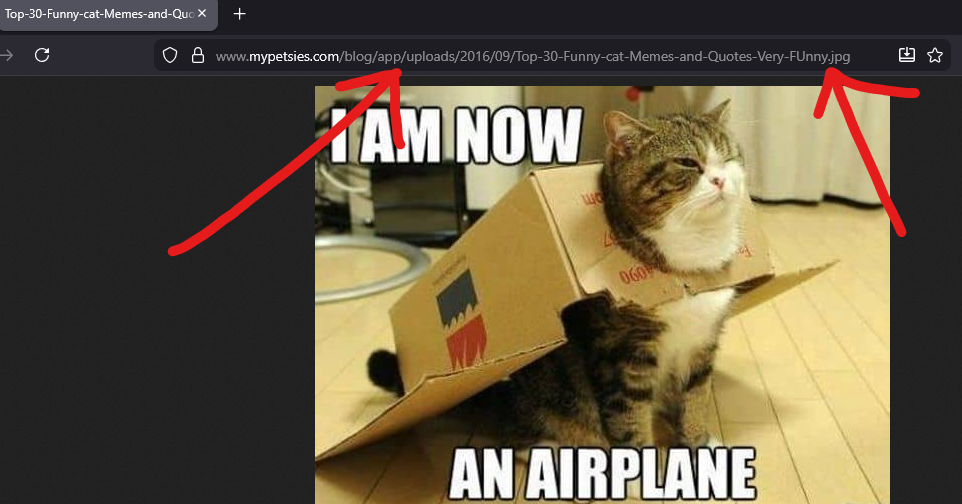
It will then open in a new tab, you can look in the address bar for the full url. You can generally tell if it’s the full url to the image if the url ends in the filename like .jpg, .png, .webp, .gif. Now just copy that url and paste it into chat:
If there’s an image on your phone/computer that you want to paste in chat, no problem, just use an image hosting service like imgur.com or imgbb.com. Those services are both free and don’t require signing up for any account. Usage is pretty simple, just upload your image to the respecive service, then use the same trick I showed before – open the submitted image in a new tab:

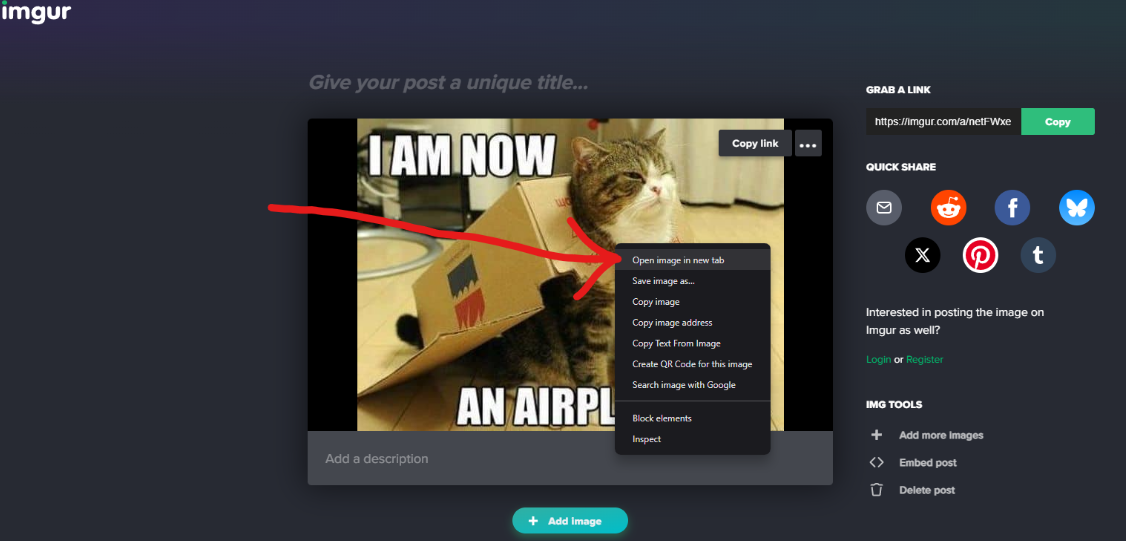
Once the image opens in a new tab, you have the full url to the image and can use it in chat.
You can use the same technique to send images inside Kingdom Chat, but there’s also the “Add Meme” button where you can actually directly upload an image to send to an ally as well.
Interested in making a meme? You can use imgflip.com to generate a meme, then use that same technique after you hit the “generate” button to open your generated meme image in a new tab, then you’ll have the full url you can use to embed it in chat.
If wondering how to add images in the Forums, it’s a very similar process, here’s instructions for that: https://forum.thardferr.com/d/440-how-to-post-pictures-memes